
Even though I work online and basically rely on technology in all forms to live my day-to-day life, I’m actually quite low tech. I have certain apps and websites I use that I’m really good with (Google Flights, ITA Matrix, etc.), but for the most part I’m a pretty late adopter when it comes to technology. I sometimes think that using more technology bogs me down, so I don’t use something unless I truly think it’s beneficial.
So when I write about apps, I’m not doing so in the sense of “hey, check out this awesome app that I’m the first person to discover,” but rather I do so in the sense of “I’m probably the third to last person in the world not to use this, so you need to start using it as well.”

Google Maps Offline mode is awesome
I can’t believe I only used this for the first time a few weeks ago. Let me explain.
I use T-Mobile for my phone service, and that gets me 2G coverage in 140+ countries. 2G speeds aren’t great, but they do the trick for texting, checking email, and using maps when traveling, which is really all I need to do when I’m out and about (Tiffany, on the other hand, uses Google Fi).
So really my challenges when it comes to navigating my way around cities when traveling are twofold:
- Some countries aren’t covered by T-Mobile’s Simple Choice Plan
- Even when countries are covered, sometimes the 2G is so excruciatingly slow that it takes several minutes to load a map
That brings me to Google Maps Offline, which I recently used for the first time in the Seychelles, since oddly the Seychelles isn’t one of the countries covered by T-Mobile’s Simple Choice Plan. Tiffany told me to download it, and I can’t believe I hadn’t done so before.
Essentially Google Maps lets you download the map for a particular destination in advance so that you can use it without having data or Wi-Fi. That way you can still use it to get directions. The only downside is that if you’re driving, you won’t get local traffic reports (though in the Seychelles traffic isn’t exactly a huge issue).
How to download Google Maps Offline
First and foremost you have to actually download the Google Maps app.
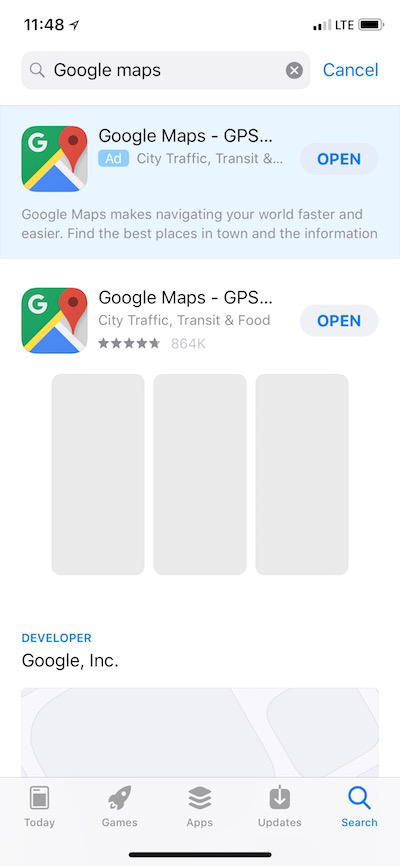
Once you have the app, search for the place you want to download the map for (generally you’ll want to search a city, though you can choose an area that’s more or less specific than that if you prefer).
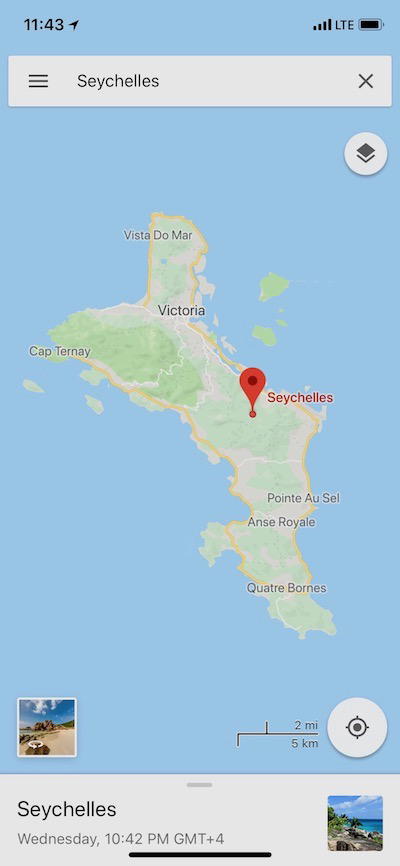
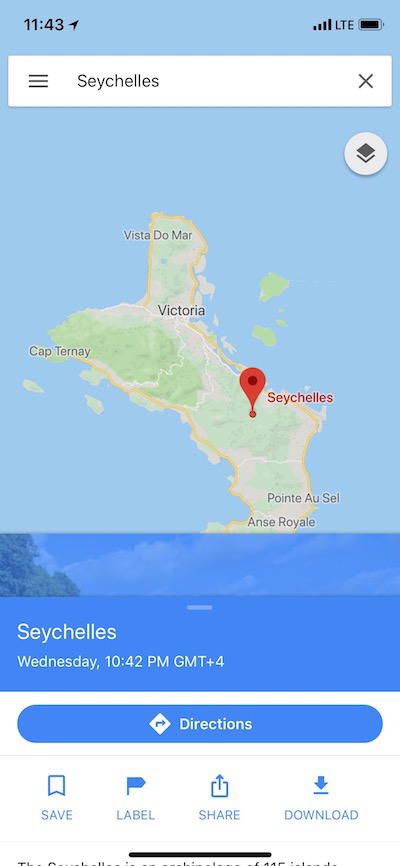
Once you’ve opened the map, you’ll want to swipe up on the bottom part of the screen, where you’ll see the “Download” option.
That will then bring you to a map that it will ask you to size, depending on how much of the map you need. Keep in mind that the bigger the area, the longer it takes to download, and the more space it takes up. You’ll want to be connected to Wi-Fi when you download the map, since otherwise it will take quite a while.
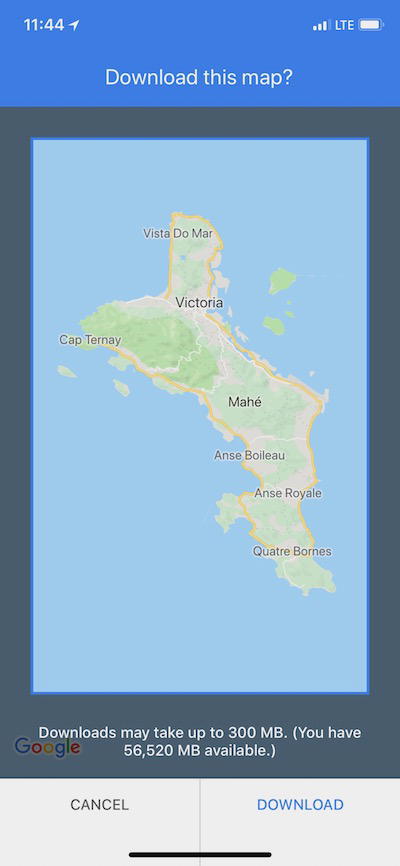
Once that’s complete you’re all set — you can be in airplane mode and still use the map at your destination.
Note that the saved map will automatically expire after 30 days so that you’re not taking up too much storage space. However, if you want to delete it before that, it’s easy to do so. Click the button at the top left of Google Maps, and then you’ll see a section for “Offline maps.”
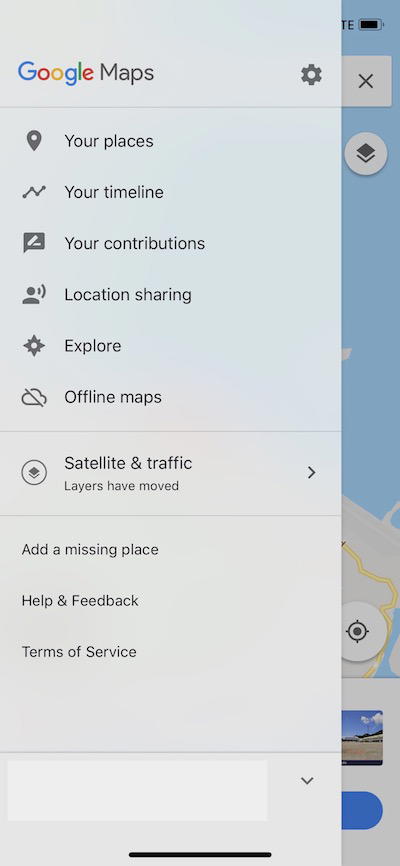
Once you click that you should see your saved maps.

When you select the map you can click either “Delete” (if you don’t want it stored on your phone anymore) or “Update” (if you want the most up to date map).

Bottom line
I’m now downloading Google Maps for all my international travels going forward. Even if I’m traveling somewhere where I’ll have 2G data, it’s nice to have the map downloaded so that you can instantly get directions, rather than having to wait for a page to load.
Am I basically the last person on earth that hadn’t been using Google Maps Offline? Anyone have another map app that they really like?


Membership is free and takes no more information than commenting as a guest. Earn status points for good contributions, and see fewer ads as your status grows.