
In Spencer’s guide to Amex Offers yesterday he mentioned stacking the offers with shopping portals, which reminded that I’ve been meaning to put together a post on how to leverage Cashback Monitor for…possibly months.
If you aren’t familiar with the site, Cashback Monitor collates and tracks the payout rates of various cashback and rewards portals. Just like with the portals, using it doesn’t cost you anything extra, and can give you a quick way to compare the alternatives.

Basics of comparing shopping portals
As an example, since I am once again/perpetually in the market for a new laptop, let’s look at rates for the Apple Store.
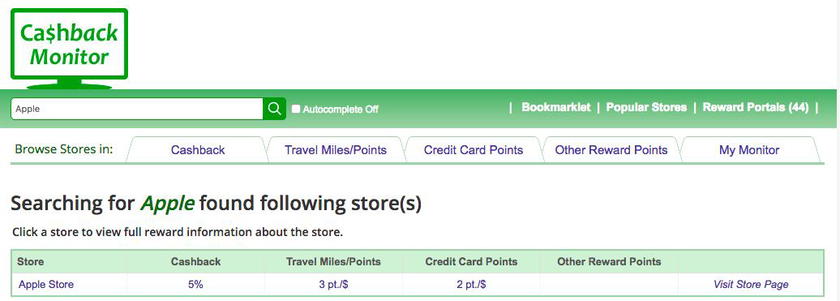
At the top of the page, you can enter a specific store you’re interested in. I find it best to use shorter search terms when possible, as the spacing and marks on some of these stores can confuse the search tool.
You’ll get a list of results (there might be multiple retailers for your search), and a high-level look at the best rates of return:
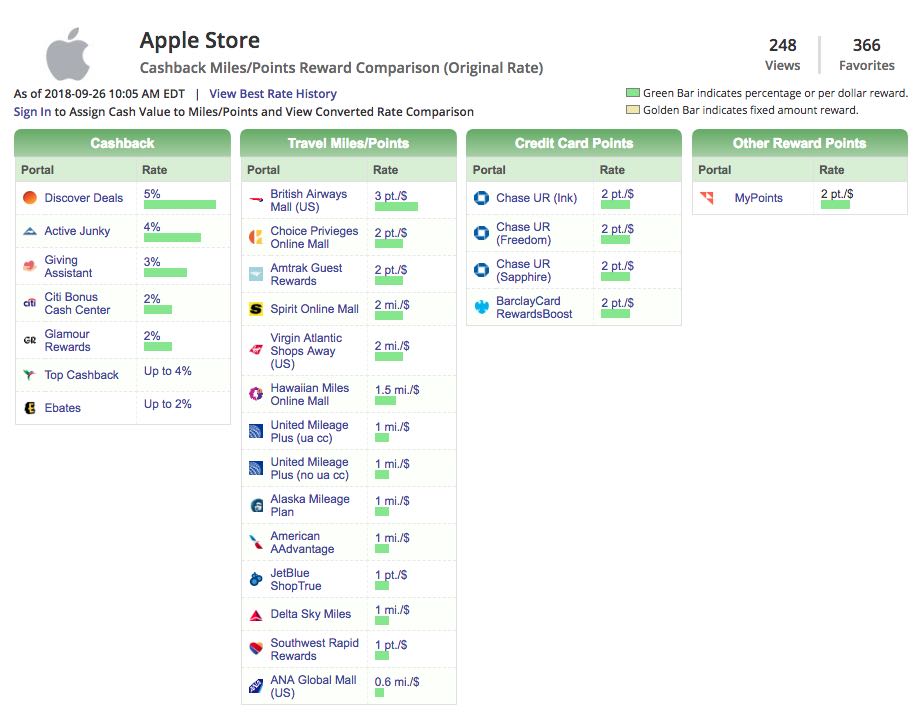
If you look at the specific Store Page, you can see a breakdown of the various portals, sorted by the type of miles or points each offers:
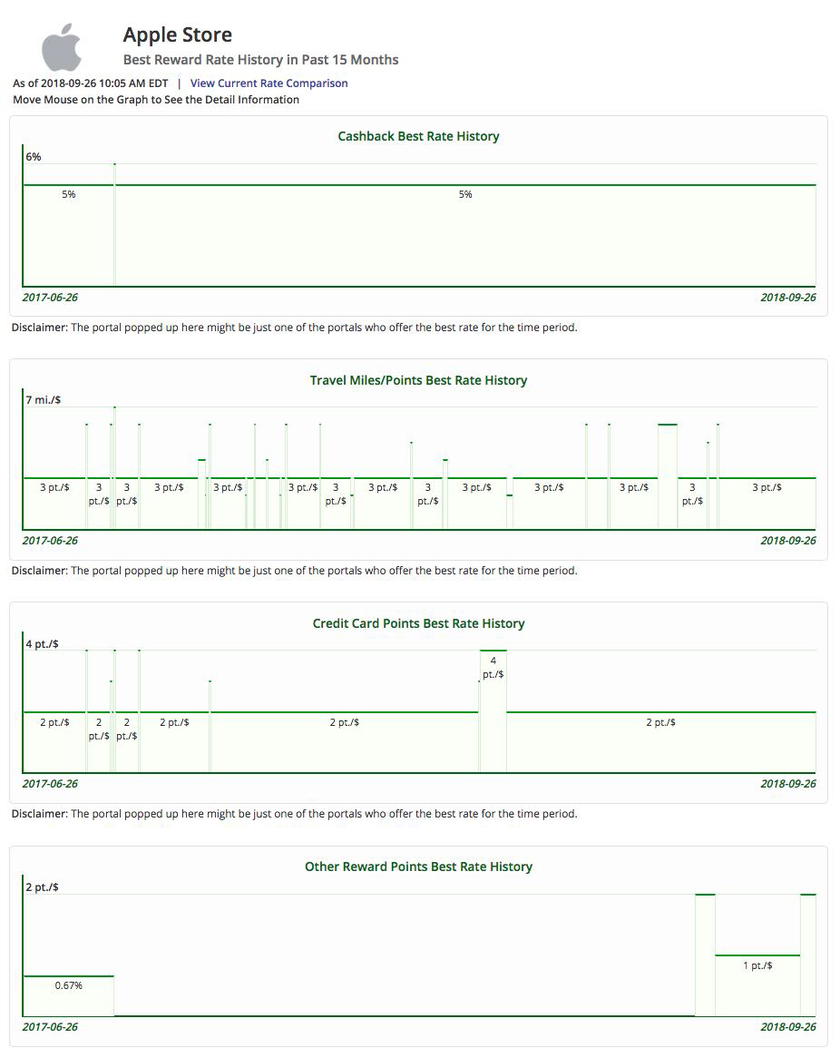
The “Best Rate History” is another cool tool, that gives you a snapshot of what the reward rates have been over the past 15 months. You can mouse over the data inputs to get more details about the rate, portal, and time period.
It’s worth noting that none of these rates factor in special promotions that shopping portals sometimes have for “spending $x through the portal in y days“. We frequently see these with the airline portals, particularly around “Back To School” and the holiday period, but as those apply to the portal as a whole, and not a specific retailer, Cashback Monitor doesn’t track those, so you’ll have to do your own math.
Personalizing Cashback Monitor
If you know you have a major purchase coming up (or even if you perpetually have a bunch of small purchases), it’s worth the time to register for an account and configure the site.
Once you log in, you can choose eight portals to be tracked. You can always still compare across all portals, so just choose the ones you think you might be most interested in.
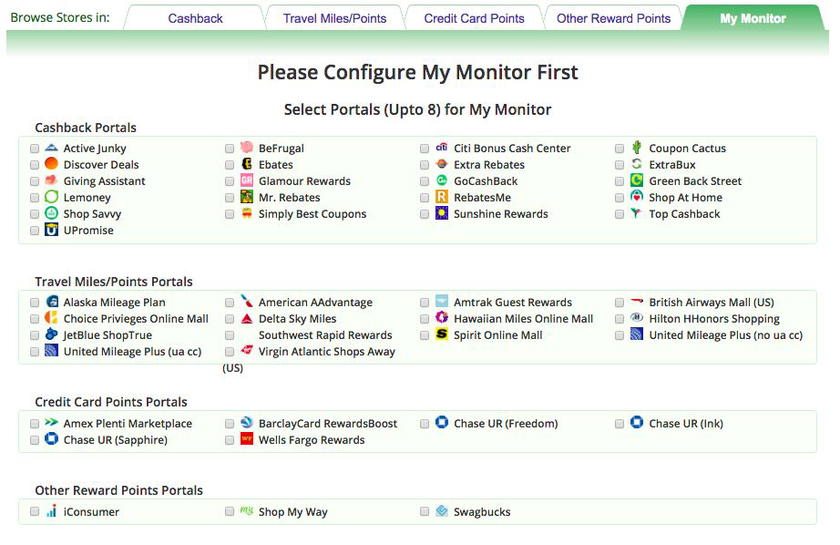
You can also specify particular stores that you use frequently, or want to monitor. In my case, as I’m waiting for the best time to replace my laptop, I’ll want to be able to take a quick glance at both the Apple Store and MacMall.
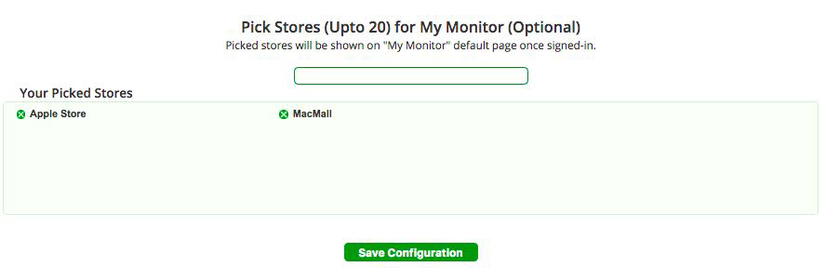
Once you’ve added preferred portals and stores, you’ll see the rates under the “My Monitor” tab:
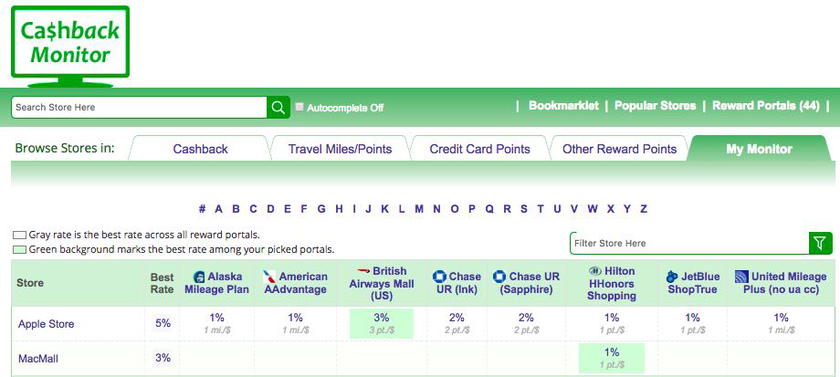
You’ll still see the best possible rate even if it isn’t through one of your preferred portals, and can always click on the store to see the full comparison across all portals. But this streamlines things a bit.
To save further time, you can set alerts for specific stores, and receive an email when a portal reaches a given threshold.
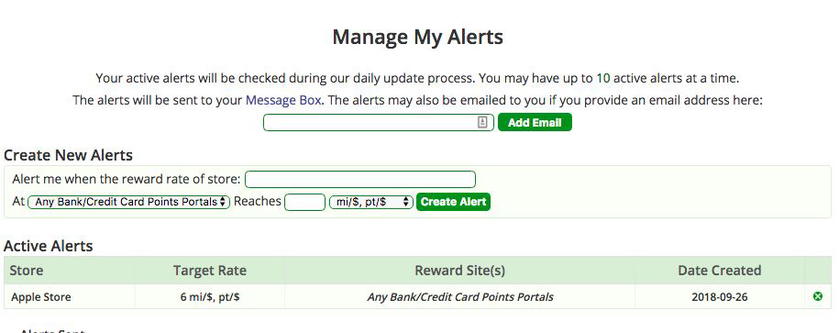
So if a portal is offering triple points at your chosen store one day, you can be alerted to it. Once again though, this doesn’t factor in portal spending promotions.
Set your own points values
Of course, not all points are created equal, so knowing the rate of return isn’t always enough.
To customize this even further, you can adjust the values of all the travel, credit card, and reward points. This is going to be different for everyone, but in this case I just used Ben’s most recent valuations.
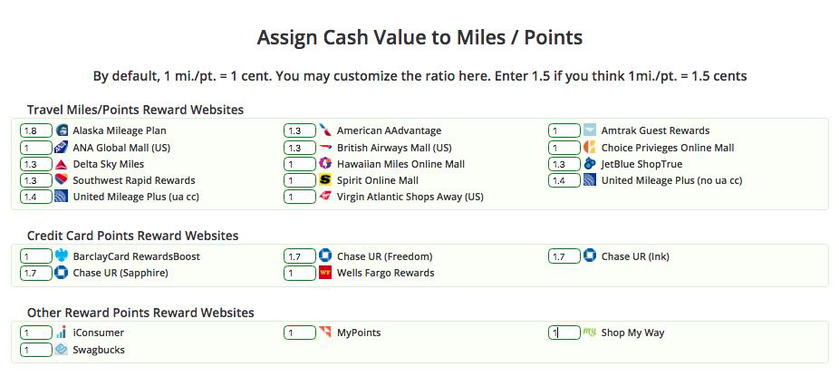
Once you’ve changed the defaults, the My Monitor tab will show all the rewards rates as a %, so you can evaluate your comparative return:
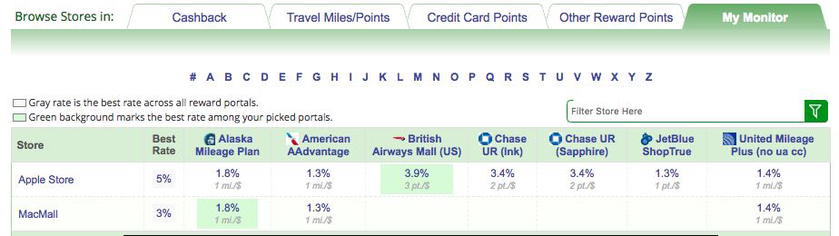
I sometimes still throw all this math out the window, because while the Avios return is theoretically better, I’m drowning in Avios. So I’d probably choose to earn Ultimate Rewards here, personally. But it’s nice to be able to easily compare.
Bottom line
As with everything, there are way more advanced and complicated techniques that can be used here. But I think this is pretty approachable method for those of us who just want to get some extra points for the stuff we’re buying anyway, and want to be confident in “the deal” without jumping through too many hoops.
How do you determine which shopping portal to use?




Membership is free and takes no more information than commenting as a guest. Earn status points for good contributions, and see fewer ads as your status grows.